Google Shopping: How to Sell Your Products on Google?



Most e-commerce operators treat Google Shopping as an afterthought, running Meta ads while competitors quietly capture high-intent traffic from people already searching for what they sell. That gap is expensive, because Shopping reaches buyers at the moment they are comparing products rather than discovering them. So how do you sell your products on Google Shopping?
The setup runs through two connected accounts. Google Merchant Center holds your product data, and Google Ads runs the campaigns against it. Your catalogue feeds from your store into Merchant Center, Google reviews it, then your products become eligible to appear in Shopping results.
Four steps structure the process. You create and verify your Merchant Center account, which requires a custom domain and a publicly accessible storefront. You submit your product feed, either automatically through a Shopify or WooCommerce integration or manually. You wait for approval, typically three to five days. And you launch campaigns from Google Ads.
One element determines your results more than your bidding strategy: your product feed quality. Google matches search queries against your titles, descriptions and attributes rather than against keywords you choose. A product titled “Blue Shirt” competes for almost nothing, while “Oxford Cotton Shirt Men’s Slim Fit Navy” matches dozens of commercial queries.
Several prerequisites block accounts before they start. Complete store policies covering shipping, returns and contact information are enforced strictly, and missing them is the most common cause of suspension.
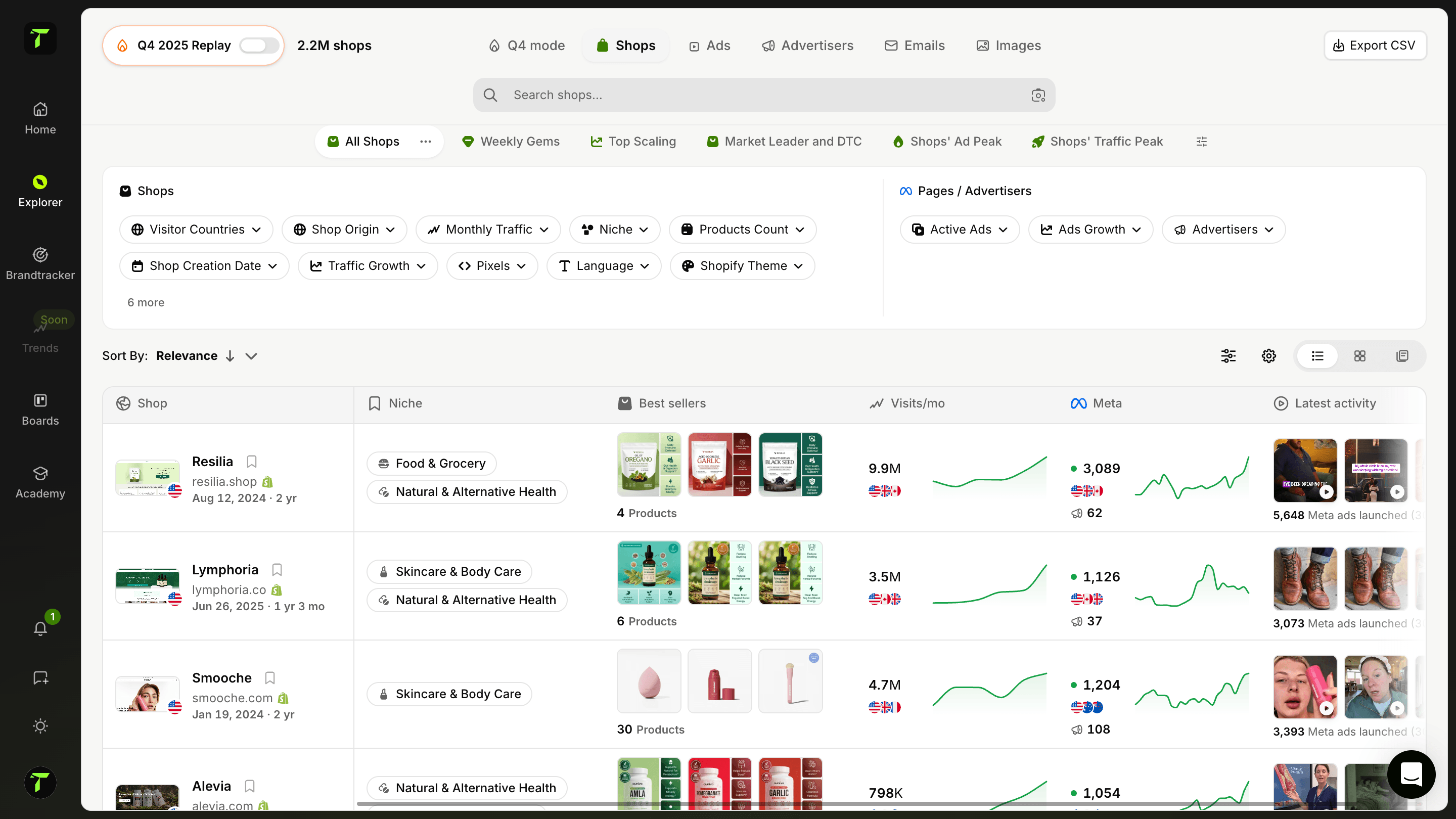
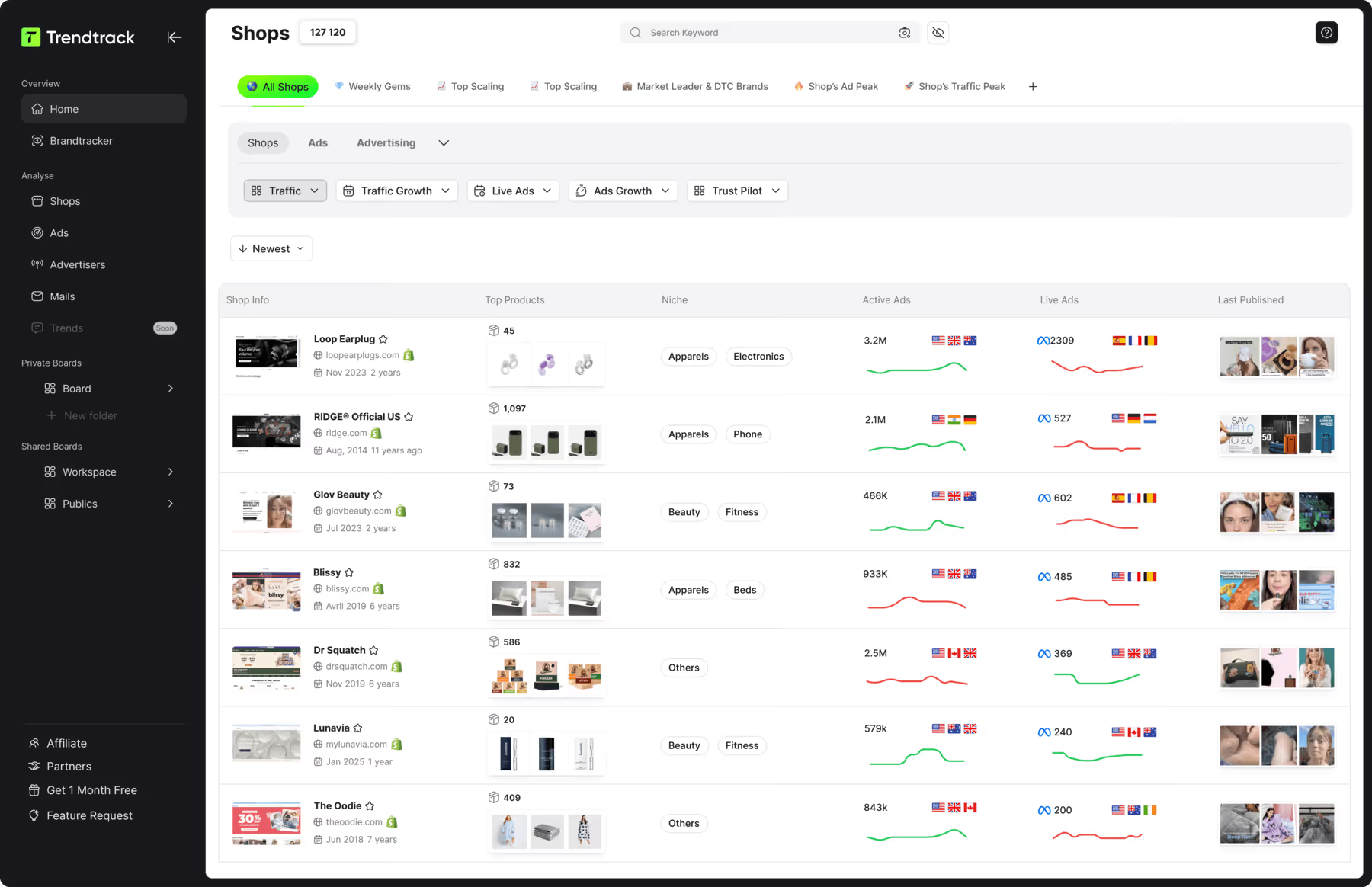
To see what competitors run on Shopping before committing budget, Trendtrack available at app.trendtrack.io/en/sign-up preserves full ad history across Google Search, Shopping, YouTube and Display, with 700,000+ brand profiles refreshed every 24 hours.
In this article we explain step by step how to sell your products on Google Shopping.
What Is Google Shopping?
Google Shopping is the product listing service displaying items with their image, price and merchant name directly in search results, typically above or beside the standard links.
Its operating logic differs fundamentally from classic Search advertising. With text ads, you choose the keywords you bid on. With Shopping, you submit a product catalogue and Google decides which queries your items match, drawing on your titles, descriptions and attributes.
That distinction changes everything about how you optimize. There is no keyword list to refine. Your feed quality is your targeting.
The service runs on two connected accounts. Merchant Center holds your product data and keeps it synchronized with your store. Google Ads runs the campaigns bidding on that inventory.
Listings appear across several surfaces: the Shopping tab, the main search results, Google Images, YouTube and the Display network depending on your campaign type.
Its commercial strength lies in purchase intent. Someone searching for a specific product with a price in mind is considerably further along than someone scrolling a social feed. Conversion rates reflect that difference consistently.
A second advantage is visual presentation. Shoppers see your product, your price and your brand before clicking, which filters out traffic that would have bounced and improves the quality of what arrives.
Note that free listings also exist in the Shopping tab, giving unpaid visibility alongside your campaigns.
Trendtrack available at app.trendtrack.io/en/sign-up reveals competitor Shopping activity.
What Do You Need Before Selling on Google Shopping?
Most account suspensions trace back to missing prerequisites rather than to the setup itself. Checking these first saves days of back and forth.
A verified custom domain
Google requires your own domain rather than a platform subdomain. Your store must be reachable at your URL, and that domain must be claimed in Merchant Center.
This blocks more beginners than any other requirement, since a store still running on a default platform address cannot complete verification.
A publicly accessible storefront
Your site must be live and crawlable, not password protected. Google verifies that the information in your feed matches what customers actually see on your product pages.
Remove any access restriction before starting, and confirm your pages load correctly for a visitor who is not logged in.
Complete store policies
Google enforces this strictly, and it causes more suspensions than anything else. You need visible, accessible shipping policies, return and refund policies, terms of service and contact information.
These must be genuinely reachable, typically linked in your footer with their own URLs. A suspension for missing policies takes days to resolve, which is time your campaigns are not running.
Accurate shipping and tax settings
Your shipping rates and tax configuration must match what you actually charge at checkout. A discrepancy between the cost shown in Shopping results and the one applied at payment triggers disapprovals across your catalogue.
Configure these properly before submitting your feed, since Google compares them directly.
Compliant products
Your catalogue must respect Shopping policies. Certain categories are restricted or prohibited entirely, including some supplements, weapons, adult content and counterfeit goods.
Verify your products before submitting rather than discovering disapprovals after launch.
A quality product feed
This determines your performance more than your bidding ever will, since Google matches queries against your feed data rather than keywords you select.
Each product needs a descriptive title including brand, type and key attributes. “Blue Shirt” competes for almost nothing. “Oxford Cotton Shirt Men’s Slim Fit Navy” matches dozens of commercial queries.
You also need clear images on plain backgrounds without promotional overlays, accurate prices matching your storefront exactly, and correct availability status.
Adding GTINs where applicable significantly improves visibility, since Google uses them to match products across merchants and understand what you are selling.
A Google account with admin rights
You need admin access on your Merchant Center and Google Ads accounts, or the ability to create them. If an agency or former collaborator holds these, secure access before starting.
Realistic budget expectations
Technically optional, practically essential. Shopping campaigns need volume to optimize, and a budget too small never generates enough conversion data to exit the learning phase.
How to Set Up Google Shopping Step by Step?
The process takes roughly an hour once your prerequisites are in place. Here is how to proceed.
Create your Merchant Center account
Claim and verify your domain
Configure your shipping and tax settings
Submit your product feed
Wait for product review
Link Merchant Center to Google Ads
Launch your first campaign
The first step is to create your Merchant Center account at merchants.google.com, entering your business details and your store URL.
The second step is to claim and verify your domain. Shopify and WooCommerce users can usually complete this automatically through their platform integration. Otherwise you verify through a meta tag, an HTML file or your DNS records.
The third step is to configure shipping and tax before submitting anything. These settings must match what you charge at checkout, since Google compares them directly and disapproves mismatches across your entire catalogue.
The fourth step is to submit your product feed. The simplest route is an automatic integration through your platform, which syncs your catalogue and updates it when you change a product. Manual upload via spreadsheet or scheduled fetch also works for custom setups.
The fifth step is to wait for review, typically three to five business days for an initial submission. Check your diagnostics during this period and work through any disapprovals from the specific reasons listed.
The sixth step is to link Merchant Center to Google Ads from your account settings, which requires admin rights on both.
The seventh step is to launch your campaign. Performance Max suits most stores initially since it covers Shopping, Search, YouTube and Display from one setup. Standard Shopping offers more granular control once you have data.
Launch only after approval, since disapproved products cannot serve.
How to Optimize Your Product Feed?
Your feed is your targeting on Google Shopping, which makes it the highest-leverage work available. Here is what to improve.
Write descriptive titles including brand, product type, key attributes and variant
Front-load the important terms, since titles get truncated in results
Add GTINs wherever applicable to help Google match your products
Use clean images on plain backgrounds with no promotional overlays
Fill every optional attribute: color, size, material, gender, age group
Write genuine descriptions rather than copying manufacturer text
Assign accurate product categories from Google’s taxonomy
Add custom labels to segment your bidding by margin or performance
Keep prices and availability synchronized with your storefront
Among these, titles carry the most weight by a considerable margin. Google matches search queries against them directly, which means a vague title simply never appears. “Blue Shirt” competes for almost nothing. “Oxford Cotton Shirt Men’s Slim Fit Navy Blue” matches dozens of commercial queries including long-tail searches with real purchase intent.
Structure them consistently: brand, then product type, then defining attributes.
GTINs come next in impact and get overlooked constantly. These identifiers let Google understand precisely what you are selling and match it against competitors, which improves both visibility and placement. If your products have them, use them.
Optional attributes are where most merchants leave performance on the table. Color, size, material and gender feel like administrative fields, but they power the filters shoppers use and the queries Google matches you against.
Custom labels deserve a mention for bidding. Tagging products by margin, seasonality or performance lets you bid differently on items worth different amounts, which pure category-based bidding cannot do.
What Mistakes Should You Avoid on Google Shopping?
Several errors cost merchants money or get their accounts suspended entirely.
Launching before approval, which spends budget on products that cannot serve
Neglecting your feed while obsessing over bidding settings
Mismatched prices between your feed and your storefront
Missing store policies, the leading cause of suspension
Vague product titles that match almost no commercial queries
Running everything in one campaign without segmentation
Cutting campaigns too early, before they exit the learning phase
Ignoring Merchant Center diagnostics and their specific disapproval reasons
Promotional text in images, which triggers automatic rejection
Among these, neglecting your feed is the most expensive in practice. Merchants spend hours adjusting bids and budgets while their titles remain unchanged, when the feed determines which queries they appear for in the first place. Bidding optimizes what you already match. The feed decides what you match at all.
Price mismatches cause more disapprovals than most merchants realize. Google crawls your product pages and compares them to your feed. A sale price updated on your store but not synchronized, or a currency discrepancy, disapproves the product immediately.
Missing policies remains the leading suspension cause and the most frustrating, since the fix is trivial and the consequence severe. Shipping, returns, terms and contact information must be visible and reachable with their own URLs.
Cutting campaigns too early deserves particular attention. Google needs conversion volume to optimize, and stopping at 48 hours means paying for the learning phase without ever collecting its benefit. Allow seven to fourteen days.
Finally, analyze by product rather than in aggregate. A satisfactory overall ROAS frequently masks one profitable product funding several losing ones.
Conclusion: Your Feed Decides Everything
Selling on Google Shopping comes down to a principle most merchants discover too late: your product feed is your targeting.
There is no keyword list to refine. Google matches queries against your titles and attributes, which means adjusting bids optimizes what you already match rather than expanding what you match at all.
Start there. Write descriptive titles including brand, product type and defining attributes, add GTINs wherever applicable, and keep prices synchronized with your storefront.
Before that, clear the prerequisites that block accounts: a verified custom domain, a public storefront, and above all complete store policies. Missing policies remain the leading cause of suspension, and the fix takes twenty minutes while the consequence costs days.
Once live, wait for approval before launching, let campaigns exit the learning phase rather than cutting at 48 hours, and analyze by product rather than in aggregate.
One final point. Shopping reaches buyers at the comparison stage rather than the discovery stage, which is why conversion rates consistently outperform social. If you run Meta exclusively, competitors are capturing that intent unopposed.
Useful Sources:

.avif)
Ready to build a million-dollar brand?
.avif)